

If you’d like to take a swing at a piñata, inquire about someone’s fiancé, price your global exports in € or £, or express über-excitement about something, then you’ll need to type some special characters. You can do so in less than ½ the time you might think it would take. Here’s how it works in the Ubuntu family of Linux distributions:
Typing in Foreign Languages:
1. Specify a Compose Key (a one-time setup)
Go to Settings Manager [or a similar system tool, depending upon your Linux distro] >> Keyboard > Layout and at:
- Compose Key: select Left Win
You may select a different key, such as the Left Alt key, but you likely are using most of the keys in the list for other routine tasks already (e.g., Alt-F to access the File menu in most applications). Selecting Left Win will not interfere with your other “hot keys,” but it will put the Windows key to good use while running Linux!
2. Compose Special European Characters while You Type
Here are some examples:
- Simply press the Windows key (or whichever key you specified in Step 1) followed by SHIFT-6 (for ^) and then followed by a in order to produce a circumflex over the letter a, thus: â.
- Similarly, press Windows then ` then e to produce a grave accent: è.
- Or, Windows then SHIFT-` (for ~) then n to produce the ñ that you’ll need for your piñata.
- To produce a fraction, try Windows then 2 then 3 for ⅔.
- To type ¿Cómo estás? type: Windows then SHIFT-/ (for ?) then SHIFT-/ (for ?) again to produce ¿ , Windows then ' then o to produce ó, and Windows then ' then a to produce á.
With a little practice, you’ll be able to type these characters nearly as quickly as you type ordinary characters.
3. Review This Chart for More Ideas
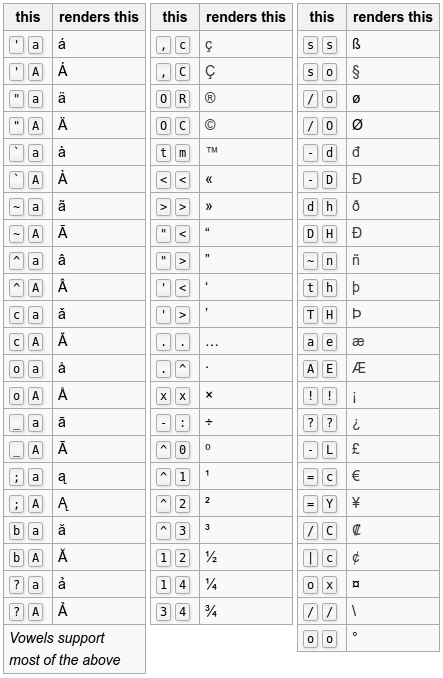 (courtesy of Wikipedia)
Looking for something more? The Ubuntu documentation provides a more comprehensive list of compose-key patterns, and if that does not satisfy your needs, you can even invent your own custom key compositions!
4. How to Type Professional-Looking Dashes on the Fly
To type an en dash (a medium dash for separating numbers, “1776–1783”) or an em dash (a long dash for separating phrases, “The suprising thing—and for some people it comes as quite a big suprise—is that Linux is both easy to use and affordable.”), simply enter the following series of keys:
- Windows then - (hyphen) then - (hyphen, again) then . (period): – (en dash)
- Windows then - (hyphen) then - (hyphen, again) then - (hyphen, a third time): — (em dash)
Note
The Keyboard Layout tool (see Step 1) also allows you to select from among a dozen or more English international keyboards, some of which use “dead keys” to produce accents. I recommend against this approach, since those keyboard layouts tend to borrow keys that you already are using for other purposes. You may discover, for example, that when using a “dead key” international keyboard CTRL-S no longer serves as a shortcut for saving a file, but instead produces some sort of special character. If, however, you follow the procedure outlined above, all of your favorite command keys will continue to work in the normal fashion.
Dr. Ryan MacPherson holds a PhD in history and philosophy of science from the University of Notre Dame. After serving for twenty years as a professor at Bethany Lutheran College, he served as the founding academic dean of Luther Classical College for three years. He is author of Rediscovering the American Republic, a two-volume anthology of primary sources in American history, as well as several other books on topics ranging from theology to politics to bioethics. Dr. MacPherson has testified in court in defense of a homeschool father and for the protection of traditional American civics curricula, contributed to legal briefs submitted to the U.S. Supreme Court in defense of marriage and the rule of law, appeared regularly on a variety of radio shows, and taught seminars for pastors and educators in Canada, Denmark, and Ecuador. The MacPherson homeschool family offers online enrichment courses through Lifelong Lyceum.
